Mastering the Desmos Math Calculator
📋 In this guide
The Desmos math calculator is a powerful and intuitive online graphing tool that has revolutionized the way students interact with mathematics. This tool allows users to graph functions, explore transformations, and perform complex calculations with ease. Despite its user-friendly interface, many students initially struggle to harness its full potential due to the wide range of features and the depth of mathematical understanding required to use it effectively. In this article, you will learn how to navigate and utilize the Desmos math calculator efficiently, ensuring you can tackle any mathematical challenge that comes your way.
Students often find the Desmos math calculator challenging because it is not just a simple algebra calculator or a basic math solver. It is a comprehensive platform that supports everything from basic arithmetic to advanced calculus. Understanding how to input equations correctly, interpret the graphical outputs, and apply the tool's various functions can be daunting at first. This guide aims to demystify the process, helping you gain confidence and proficiency when using the Desmos math calculator.
By the end of this article, you will have a clear understanding of the Desmos math calculator's features, including step-by-step instructions for solving equations and graphing functions. We will also provide detailed worked examples to illustrate how you can use Desmos to solve complex problems, discuss common mistakes to avoid, and explore real-world applications. Additionally, we will answer frequently asked questions to further enhance your understanding of this versatile tool. Whether you're familiar with other tools like Mathway or a traditional Texas Instruments calculator, this guide will help you master Desmos.
Step-by-Step: How to Solve Desmos Math Calculator
Step 1: Accessing the Desmos Math Calculator
To begin using the Desmos math calculator, navigate to the Desmos website or download the Desmos app on your mobile device. Upon opening the calculator, you will be greeted with a blank graphing area and an input field on the left side. This is where you will enter your functions and equations. Familiarize yourself with the interface, noting the various buttons and options available.
Step 2: Entering Equations and Functions
In the input field, you can type any equation or function you wish to graph or solve. For example, to graph a simple linear equation like y = 2x + 3, enter it directly into the field. The Desmos math calculator will automatically plot the graph on the right. You can enter multiple equations at once, and each will be graphed in a different color for clarity. Take advantage of the function menu to access built-in functions like sine, cosine, and logarithms.
Step 3: Exploring Graphs and Transformations
Once your function is graphed, you can interact with it in various ways. Use the mouse or touch gestures to zoom in and out or to pan across the graph. The Desmos math calculator allows you to explore transformations by adjusting coefficients and constants in your equations. You can see how changes affect the graph in real-time, providing valuable insights into the function's behavior.
Step 4: Solving Equations and Analyzing Results
Beyond graphing, the Desmos math calculator can solve equations. Enter an equation like 3x + 5 = 11, and Desmos will provide the solution. For more complex equations, you may need to use the solver function. Additionally, Desmos offers tools for analyzing graphs, such as finding intercepts, calculating derivatives, and determining areas under curves. Use these features to deepen your understanding of mathematical concepts.
🤖 Stuck on a math problem?
Take a screenshot and let our AI solve it step-by-step in seconds
⚡ Try MathSolver Free →Worked Examples
Example 1
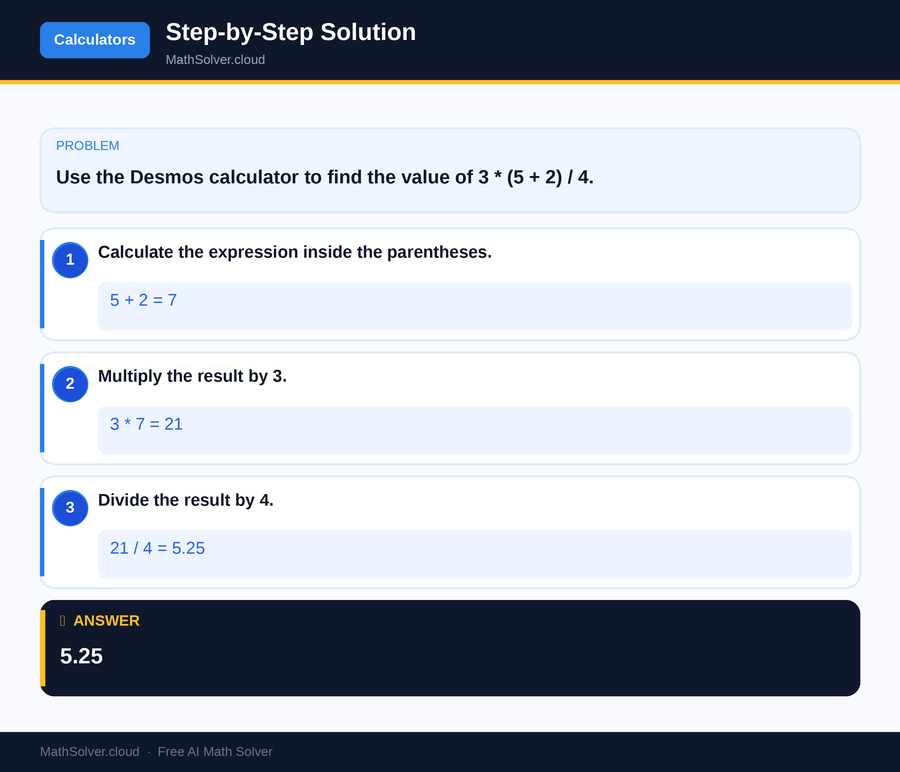
MathSolver Chrome extension solving this problem step-by-step
Example 2
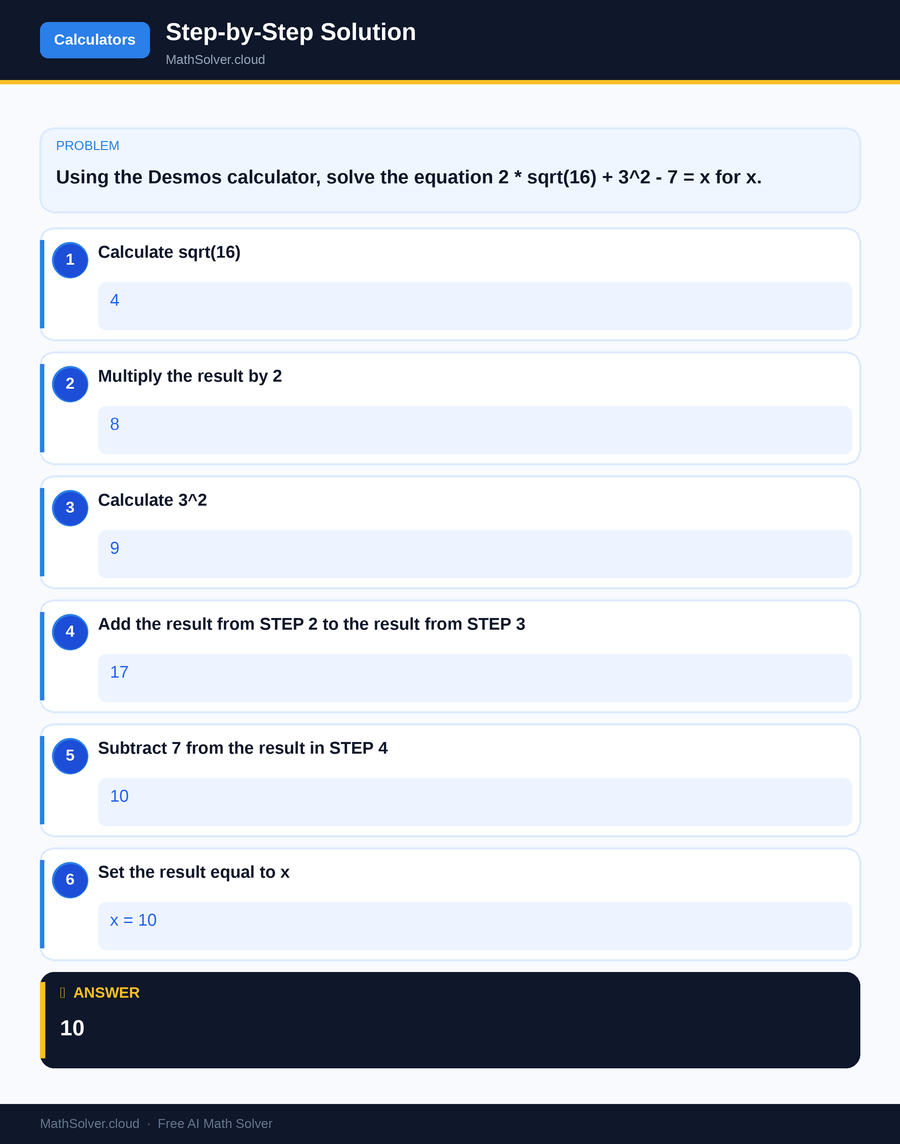
MathSolver Chrome extension solving this problem step-by-step
Common Mistakes to Avoid
One common mistake students make when using the Desmos math calculator is incorrect input formatting. Ensure that you use parentheses appropriately to dictate the order of operations. For example, in the expression 3 * (5 + 2) / 4, omitting the parentheses would result in a different calculation. Double-check your input to avoid such errors.
Another frequent error is misunderstanding the graph's scale. When graphing functions, be mindful of the axes' scale and range settings. Adjust these settings to ensure your graph is displayed correctly. A function might appear flat or distorted if the scale is too large or small. Use the zoom and pan features to get a better view of the graph.
Real-World Applications
The Desmos math calculator is not only a valuable educational tool but also has practical applications in various fields. Engineers and architects use it to visualize and analyze structural designs, ensuring that their calculations are accurate and efficient. By simulating the behavior of structures under different conditions, they can make informed decisions in the planning and development stages.
In the field of data science, the Desmos math calculator aids in visualizing data trends and patterns. Analysts can input complex data sets and use Desmos to create interactive graphs that reveal insights and drive business strategies. The calculator's ability to handle large volumes of data makes it a favorite among professionals who need to present their findings clearly and effectively.
Frequently Asked Questions
❓ What features make the Desmos math calculator unique compared to other calculators?
❓ Is the Desmos math calculator suitable for solving complex equations?
❓ How can AI help with the Desmos math calculator?
❓ Can Desmos be used offline, or is an internet connection required?
❓ How does Desmos compare to other calculators like Delta Math or Texas Instruments calculators?
🚀 Solve any math problem instantly
2,000+ students use MathSolver every day — join them for free
📥 Add to Chrome — It's Free